How to Free Up Storage Space on Your iPhone
Freeing up storage space on your iPhone is essential to keep it running smoothly. It prevents performance issues and ensures you have enough space for important apps and media. This guide will walk you through various methods to effectively clear out unnecessary storage, from deleting unused apps to optimizing photo storage.
📣 Здесь может быть ваша рекламаОставить заявку →1Method 1: Check Storage Usage
- 1
Open Settings
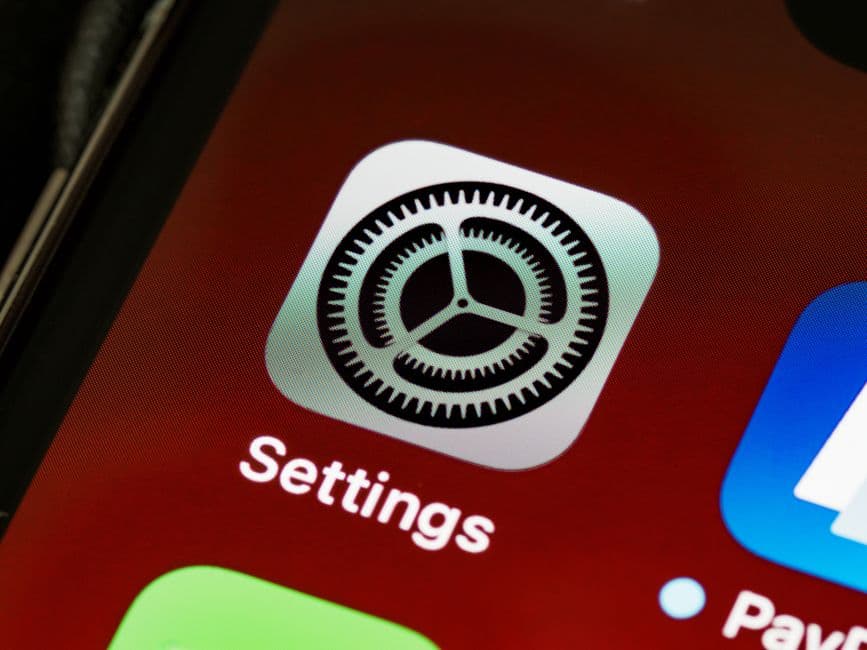
Begin by tapping the "Settings" app on your iPhone's home screen. This app is characterized by a gear icon and is typically found on the first page of your apps, making it easy to access. - 2
Access Storage Settings
Scroll down and tap on "General," then select "iPhone Storage." This section shows a breakdown of how much space you have used and what is taking up the most storage on your device, which is crucial for planning the next steps. - 3
Review Storage Breakdown
Once in the iPhone Storage section, scroll through the list of apps. Each app will show how much space it occupies. Pay attention to apps taking up excessive space; this will guide you on what to remove or manage first.
2Method 2: Delete Unused Apps
- 📣 Здесь может быть ваша рекламаОставить заявку →1
Identify Unused Apps
In the iPhone Storage menu, identify apps you no longer use or rarely open. Common culprits are games and social media apps that occupy a lot of space without being frequently accessed. Take note of these apps for deletion. - 2
Delete Unwanted Apps
To delete an app, tap on the app name in the storage list, then select "Delete App". Confirm the deletion. This removes both the app and its data, freeing up space immediately. Ensure you really don’t need the app before deletion.
3Method 3: Optimize Photos and Videos
- 1
Enable Optimize Storage
Go to "Settings," tap on "Photos," and enable "Optimize iPhone Storage." This option allows your iPhone to keep smaller, device-sized versions of photos while storing the full-resolution versions in iCloud, thus saving local storage. - 2
Delete Duplicate or Unwanted Photos
Regularly review your photo library and delete duplicates or images that are no longer needed. In the Photos app, utilize the "Recently Deleted" album to permanently clear out these images at once after deletion.
4Method 4: Clear Cached Data
- 📣 Здесь может быть ваша рекламаОставить заявку →1
Clear Safari Cache
To clear caching data from Safari, go to "Settings," scroll down to "Safari," and tap on "Clear History and Website Data." This step removes old cache files and can significantly free up space, especially if you frequently browse the web. - 2
Manage App Cache
Some apps, especially social media, store a lot of cached data. You can clear this by deleting and reinstalling the apps. For example, delete the app from your storage settings, then download it again from the App Store. This process can clear unnecessary cached data.
5Method 5: Manage Messages and Attachments
- 1
Delete Old Conversations
In the Messages app, review your conversations and delete those that are no longer relevant. Long message threads with media attachments can consume a surprising amount of space. Swipe left on conversations to delete them quickly. - 2
Clear Attachments
Within large conversations, scroll through and check for photos or videos you've received. Tap on individual attachments and select delete to free up space without removing the entire conversation. This selective approach helps retain important messages while clearing space.
💡 Tips
- Regularly check your storage usage to stay informed about what's taking up space.
- Consider cloud storage options for photos and videos to minimize local storage use.
- Back up important data before deleting apps to avoid losing any essential information.
⚠️ Warnings
- Be careful while deleting apps; ensure you back up any important data stored in them.
- Make sure you understand what data will be removed when you enable features like 'Optimize Storage'.
Frequently asked questions
How do I see what is taking up space on my iPhone?
Go to "Settings," then "General," and select "iPhone Storage". You'll see a list of apps along with the space they occupy.
What happens when I enable 'Optimize Storage' for photos?
When you enable 'Optimize Storage,' your iPhone keeps lightweight versions of your photos and stores full-resolution images in iCloud. This saves space on your device.
Will deleting an app also remove all its data?
Yes, deleting an app removes both the app and its associated data from your iPhone.
Can I recover deleted app data?
Generally, no. Once you delete an app and its data, it's permanently removed unless you have a backup.
How often should I clear my iPhone's storage?
It's a good practice to check your storage at least once a month to ensure you have enough space for your apps and data.