How to Set Up a Secure Home Wi-Fi Network
Setting up a secure home Wi-Fi network is essential for protecting your personal data and keeping unwanted visitors off your connection. It involves choosing the right equipment, securing access points, and implementing strong passwords to prevent unauthorized use. This guide will walk you through the necessary steps to create a robust and private Wi-Fi network at home.
📣 Здесь может быть ваша рекламаОставить заявку →1Method 1: Choose the Right Equipment
- 1
Select a Reliable Router
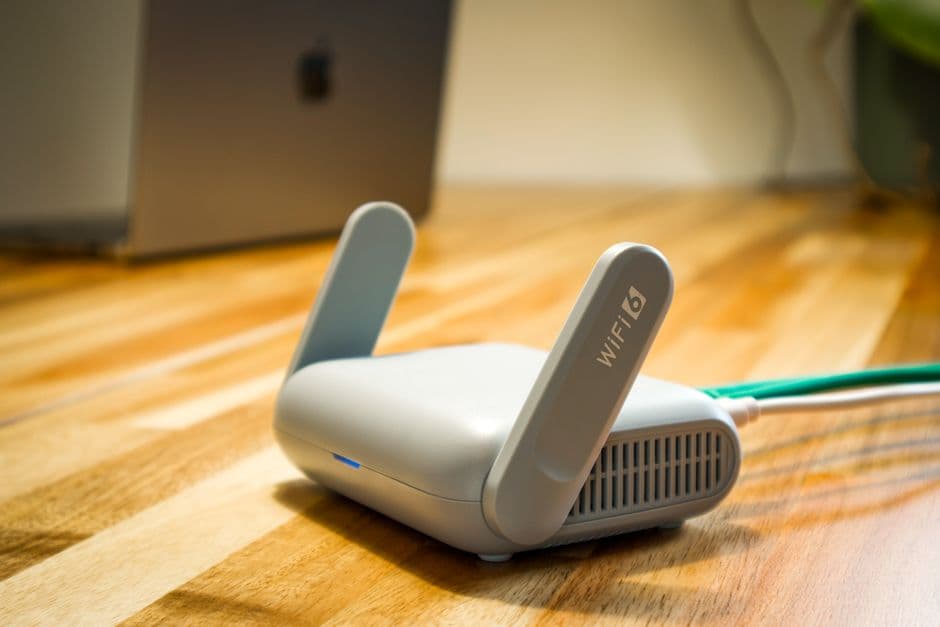
Choose a router that supports the latest wireless standards like Wi-Fi 6 (802.11ax) for improved speed and security features. Specifically look for routers from reputable brands with good reviews, as this ensures reliability and performance. Make sure your router is sufficient for your home size; typically, a dual-band router is good for most situations. - 2
Check Security Features
Ensure your chosen router has built-in security features such as WPA3 encryption. This is the latest Wi-Fi security protocol that offers robust protection. Some routers also provide options for guest networks and advanced security settings, allowing for better control over who accesses your network.
2Method 2: Configure Your Router Settings
- 1
Access the Router Settings Page
Connect your computer or device to the router's network, then open a web browser. Type the router's IP address into the address bar (usually it’s 192.168.1.1 or 192.168.0.1). Log in using the default credentials, which can be found in the router’s manual, and change these as soon as you have access. - 📣 Здесь может быть ваша рекламаОставить заявку →2
Change Default Login Credentials
Once logged in, navigate to the administrative settings and change the default username and password. Use strong passwords, consisting of at least 12 characters with a mix of letters, numbers, and symbols. This prevents unauthorized access to your router’s settings.
3Method 3: Secure Your Wi-Fi Network
- 1
Set a Strong Wi-Fi Password
Go to the wireless settings section of your router's interface and change the SSID (network name) and password. Choose a password that is at least 12-16 characters long and combines upper and lower case letters, numbers, and symbols. Avoid easily guessable information like birthdays or common words. - 2
Enable WPA3 Encryption
In the wireless security settings, select WPA3 or WPA2 if WPA3 is unavailable. This adds an additional layer of encryption to your data when transmitted over the network. Confirm that this setting is enabled to maximize your connection's security and privacy.
4Method 4: Regularly Update and Monitor Your Network
- 1
Keep Firmware Updated
Regularly check for firmware updates for your router on its settings page. Manufacturers frequently release updates to fix security vulnerabilities and improve performance. Schedule these checks monthly to ensure your router is protected from the latest threats. - 📣 Здесь может быть ваша рекламаОставить заявку →2
Monitor Connected Devices
Periodically review the list of devices connected to your network through the router's interface. If you notice unfamiliar devices, review your security settings and consider changing your Wi-Fi password. This helps you maintain control over who accesses your network and detect any unauthorized usage.
💡 Tips
- Use a network monitoring tool to keep track of devices on your Wi-Fi.
- Disable WPS (Wi-Fi Protected Setup) to prevent unauthorized access.
- Consider enabling MAC address filtering to limit devices that can connect.
- Set up a guest network for visitors to keep your main network secure.
⚠️ Warnings
- Do not use easily guessable passwords, such as 'password123'.
- Never share your Wi-Fi password with unknown individuals.
- Disable remote management features unless necessary, as they can expose your network to attacks.
Frequently asked questions
What is WPA3 and why is it important?
WPA3 is the latest security protocol for protecting Wi-Fi networks. It enhances security by providing stronger encryption and protection against offline password guessing attacks.
How often should I change my Wi-Fi password?
It's good practice to change your Wi-Fi password every 6-12 months or immediately if you suspect any unauthorized access.
Can I use an old router for my secure Wi-Fi network?
While you can use an old router, it may not support the latest security protocols. Investing in a newer model ensures better security features.
What if I forget my router's admin password?
You can reset the router to factory settings by pressing the reset button (usually located on the back). However, this will erase all your custom settings.
Is it safe to use public Wi-Fi?
Public Wi-Fi can be risky as it is often unsecured. Use a VPN to encrypt your connection if you need to access sensitive information over public networks.